Mastering Updates with the Azure Update Manager

Introduction

Are you still outsourcing your patch management or manually updating your servers? If so, it may be time to consider a switch to Azure Update Manager. In the rapidly evolving landscape of cloud computing, keeping systems up-to-date is vital for security, performance, and functionality. Microsoft’s Azure Update Manager, streamlines this essential task, providing an integrated and automated solution to manage your updates efficiently. This blog explores the major features of Azure Update Manager and how it can bolster your organization’s update management strategy.

Evolution of Azure Update Manager: What’s New?

The new Azure Update Manager enhances the update process by removing the previous requirement for a Log Analytics workspace, streamlining operations, and providing a more integrated experience.

Key Differences:

  • Log Analytics Dependency: The old system required a separate Log Analytics workspace, adding complexity to the setup.
  • Integrated Reporting: Update compliance and management reports are now more accessible, directly within the Update Manager interface.

Transition from Automation Update Management

As of August 31, 2024, Azure Automation Update Management and the Log Analytics agent will officially retire. This transition requires users to migrate to the newer Azure Update Manager for continued support and enhanced capabilities.

Why Migrate?

  • Enhanced Features: Azure Update Manager offers advanced capabilities, including integrated reporting and custom update policies.
  • Reduced Complexity: Eliminates the need for separate Log Analytics workspaces.
  • Improved Security: Leverages integrated Azure security features to protect your environments.

Key Features of Azure Update Manager

Azure Update Manager introduces a host of new features designed to enhance the efficiency and security of managing updates across Azure environments. Here’s a brief summary:

  1. Automated Patch Management: Automates the deployment of security and software updates, reducing manual efforts and human error.
  2. Comprehensive Reporting: Offers detailed insights into update compliance and status, enabling better decision-making and compliance tracking.
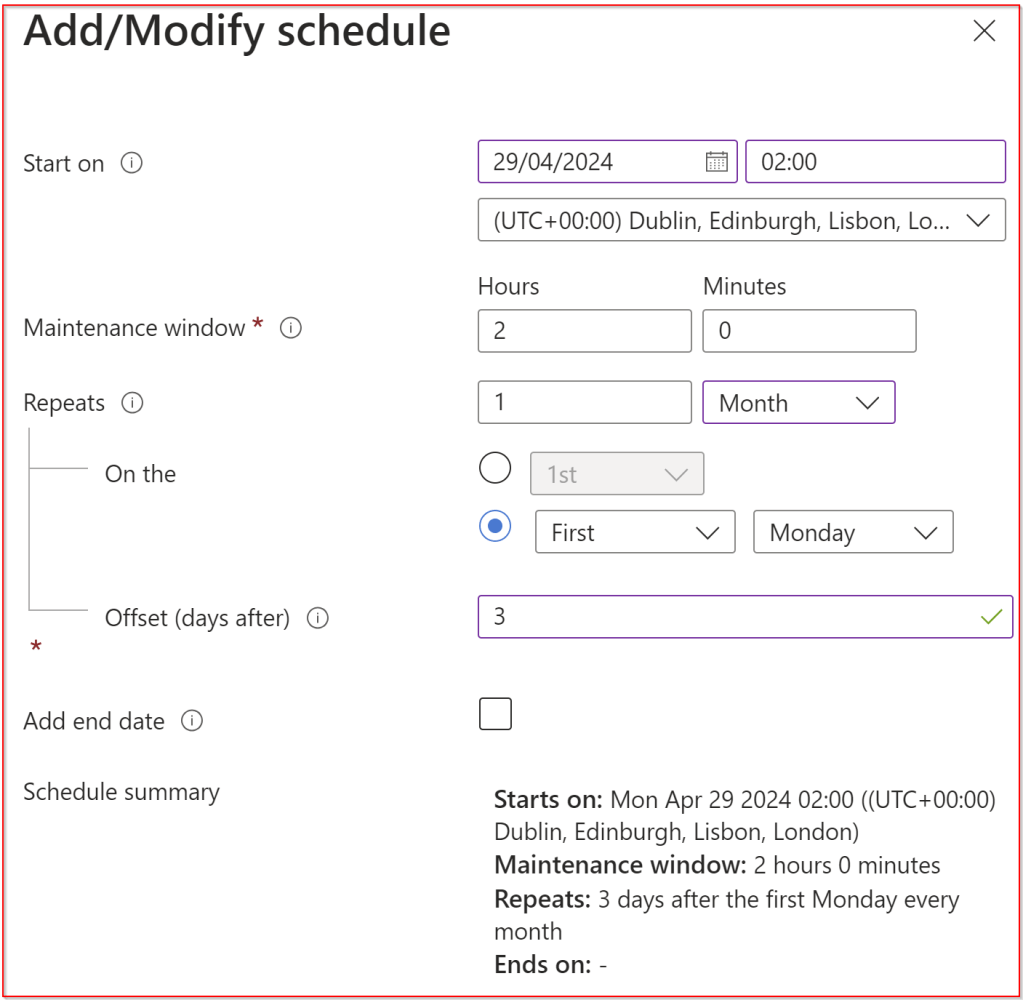
  3. Flexible Scheduling: Allows updates to be scheduled at convenient times, minimizing disruption to services. Administrators can set up different schedules for various workloads such as development, test, and production environments to align with their operational needs.
  4. Custom Update Policies: Enables users to create tailored update policies that fit specific operational needs.
Extending Update Management to On-Premises VMs with Azure Arc

Azure Arc extends Azure management capabilities to resources located outside of Azure. Integrating Azure Arc with Azure Update Manager allows for managing updates for on-premises VMs using the same tools and processes used for Azure-hosted resources.

Integration of Pre and Post Events in Azure Update Manager (Preview)

One of the standout features of the new Azure Update Manager is its ability to integrate pre and post scripts. These scripts can be scheduled using Azure Automation tasks, allowing for automated tasks to be executed before and after the update process, tailored to specific workload requirements, which cloud include:

  • Service and Application Stability
  • Creating System Snapshots
  • Checking System Health and Prerequisites
  • Verification and Logging
  • Security Checks

Conclusion

Azure Update Manager is a powerful tool that simplifies the management of software updates in Azure environments. By utilizing its comprehensive features and integrating automation scripts, organizations can enhance their operational efficiency and system reliability.

https://learn.microsoft.com/en-us/azure/update-manager/overview?tabs=azure-vms

https://azure.microsoft.com/en-us/products/azure-update-management-center
The Power of the Azure Mobile App

Ever found yourself wishing you could check on your Azure environment without having to open up your laptop? There’s an app for that. I’ve been using it for a few years in my lab environment and its a brilliant feature that’s not widely used. Lets delve a little further into shall we?

Overview

The Azure mobile app brings the robust capabilities of Microsoft Azure right to your fingertips, offering unprecedented flexibility and control. Whether you’re troubleshooting on the move, need to respond to an alert immediately, or simply want to check on the status of your resources. Below we cover some of the functionality of the app.

Azure Services

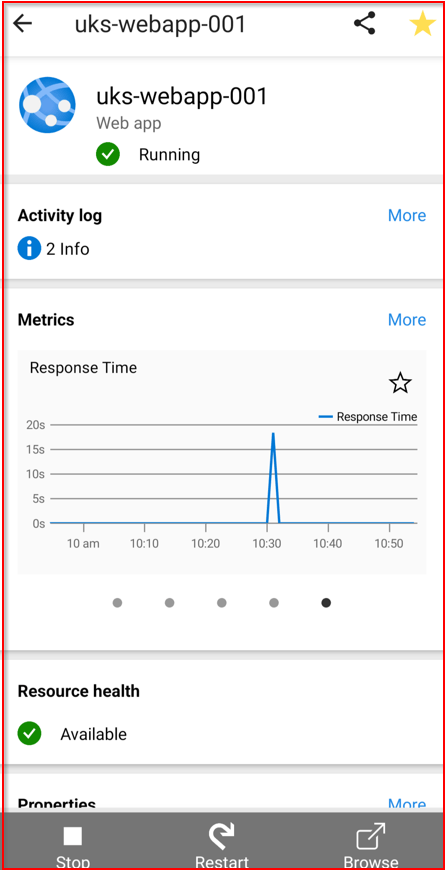
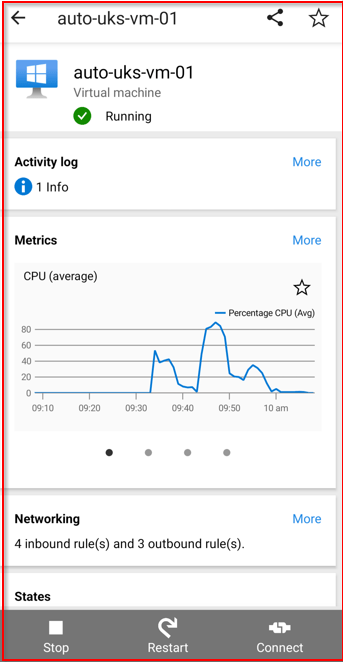
Virtual Machines: Quickly view the status of your VMs, including their operational state (running, stopped, etc.), and perform essential actions like starting or stopping VMs directly from the app.

Web Apps: Access a summary of your deployed web applications, monitor their health, and manage basic functionalities like restarts or scaling operations.

SQL Databases: Keep an eye on your databases’ performance metrics, usage statistics, and receive alerts for any operational issues or performance bottlenecks.

Application Insights: Gain insights into your application’s performance and health, with access to telemetry data including request rates, response times, and failure rates.

Latest Alerts: Receive notifications and alerts regarding the health and status of your Azure resources. This section helps you stay informed about any issues that need your attention, allowing for quick responses to keep your services running smoothly.

Recent Resources: A convenient list of the Azure resources you’ve recently accessed or modified. This feature offers quick navigation back to these resources for further monitoring or management.

Service Health: View the current health status of Azure services globally or in specific regions. This section provides updates on any ongoing issues, planned maintenance, or advisories that might affect your services.

Cloud Shell: Direct access to Azure Cloud Shell from the app, allowing you to run PowerShell or Azure CLI commands for advanced management tasks. This powerful feature brings the flexibility of command-line tools to your mobile device.

Resource Groups: Manage and view your resource groups, offering a structured view of the resources under each group. This helps in organizing and accessing related resources efficiently.

Microsoft Learn: Stay up-to-date with the latest Azure tutorials, courses, and learning paths from Microsoft Learn. It’s a great way to improve your Azure skills and knowledge on the go.

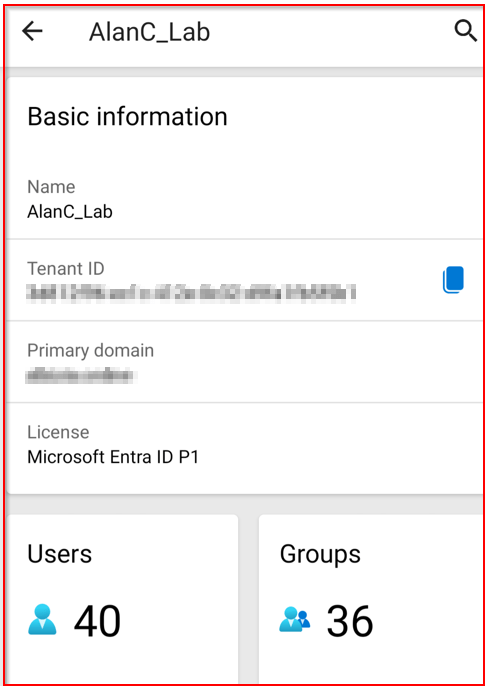
Microsoft Entra ID: Access to identity and access management features through Microsoft Entra, helping you manage users, permissions, and access to your Azure resources securely.

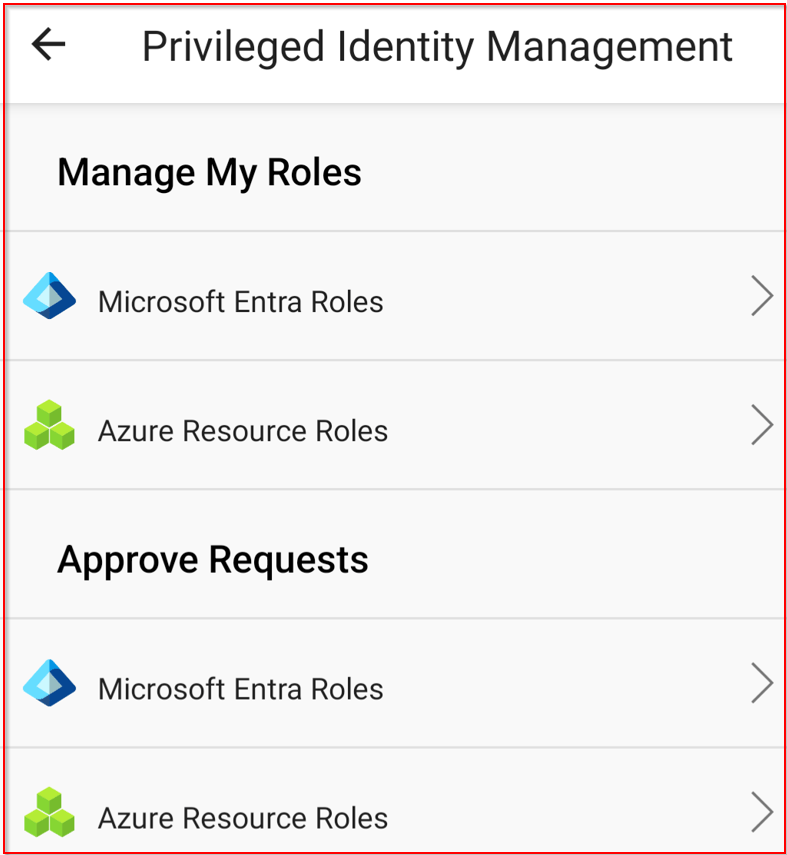
Privileged Identity Management (PIM)

  • Activate Roles: Easily activate eligible assignments for PIM roles.
  • Request Renewals: Request renewals for roles that are expiring.
  • Check Pending Requests: Monitor the status of pending PIM requests.

Favorites: Customize your home screen by adding your favorite Azure resources for quick access. Ensuring the tools and resources you use the most are always just a tap away.

The Azure mobile app’s home screen is designed to be a powerful, customizable dashboard that brings the most important aspects of your Azure environment directly to your fingertips, enhancing your ability to monitor and manage your cloud resources efficiently, even while on the move.

Why should you use the mobile app?

The app is designed to offer convenience, flexibility, and real-time management capabilities, from the comfort of your mobile device. some of the key reasons include:

On-the-Go Management

The ability to monitor and manage your Azure resources without being tied to a desktop computer is incredibly convenient. Whether you’re traveling, in meetings, or away from your desk, the Azure mobile app ensures you’re always connected to your cloud environment.

Immediate Incident Response

With real-time alerts and notifications, the Azure mobile app enables you to respond to and resolve issues as soon as they arise. This rapid response capability can significantly reduce downtime and improve the reliability of your services.

Secure Access

Security is a top priority, and the Azure mobile app supports secure sign-in through Azure Active Directory (AAD) and Multi-Factor Authentication (MFA). This ensures that access to your Azure resources is both convenient and secure, protecting your environment from unauthorized access.

Additional Information:

https://azure.microsoft.com/en-gb/get-started/azure-portal/mobile-app

https://learn.microsoft.com/en-us/azure/azure-portal/mobile-app/overview