Microsoft 365 Backup (Preview)

Ever since Microsoft unveiled its plan to introduce a native backup solution for M365, I’ve been eagerly anticipating the chance to put it to the test. Despite being in the public preview stage, it is showing promise. Securing your Microsoft 365 (M365) environment through backups is essential for protecting data and defending against cyber threats. It enables swift recovery from accidental deletions, cyber attacks, and unforeseen incidents, guaranteeing continuous operations and instilling confidence in the integrity of your data.

Requirements

In order to configure the you need to link it to an Azure PAYG subscription is required, and a resource group.

Initial Setup

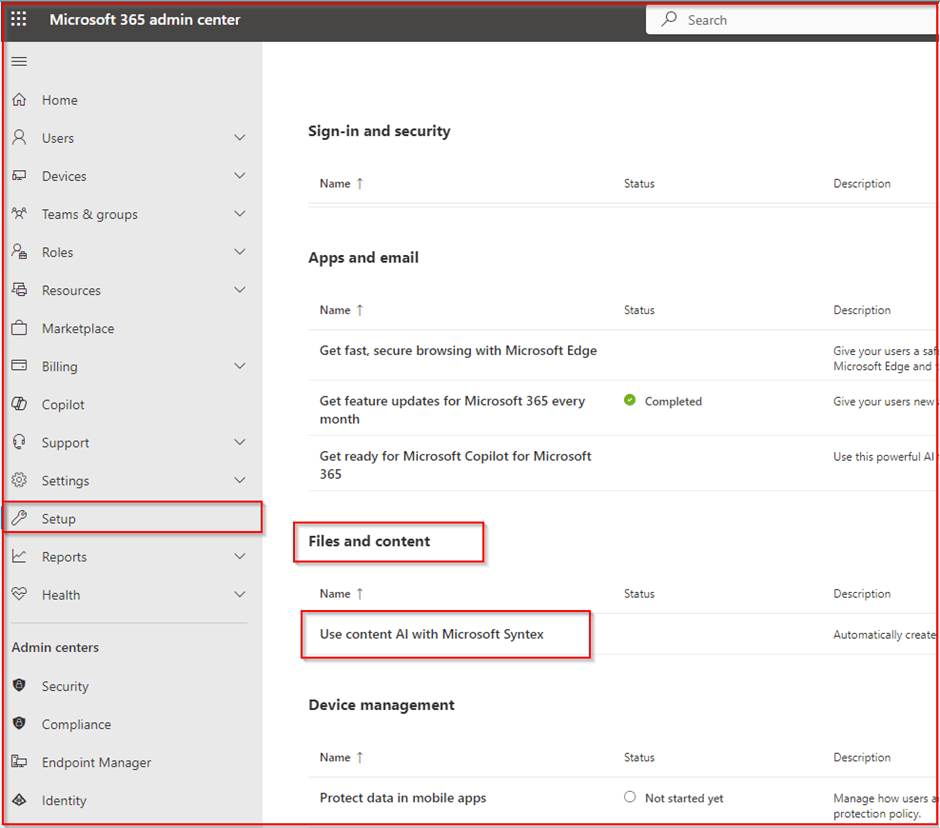
Login into the M365 Admin Centre browse to:

  • Setup
  • Files and content
  • User Content AI with Microsoft Syntex

Click on Set up Billing and add your Azure subscription and resource group. The resource group will not contain the backups, or any data, I suspect it would be used for billing purposes.

On the Manage Microsoft Syntex section, click on the Backup (Preview) and turn it on.

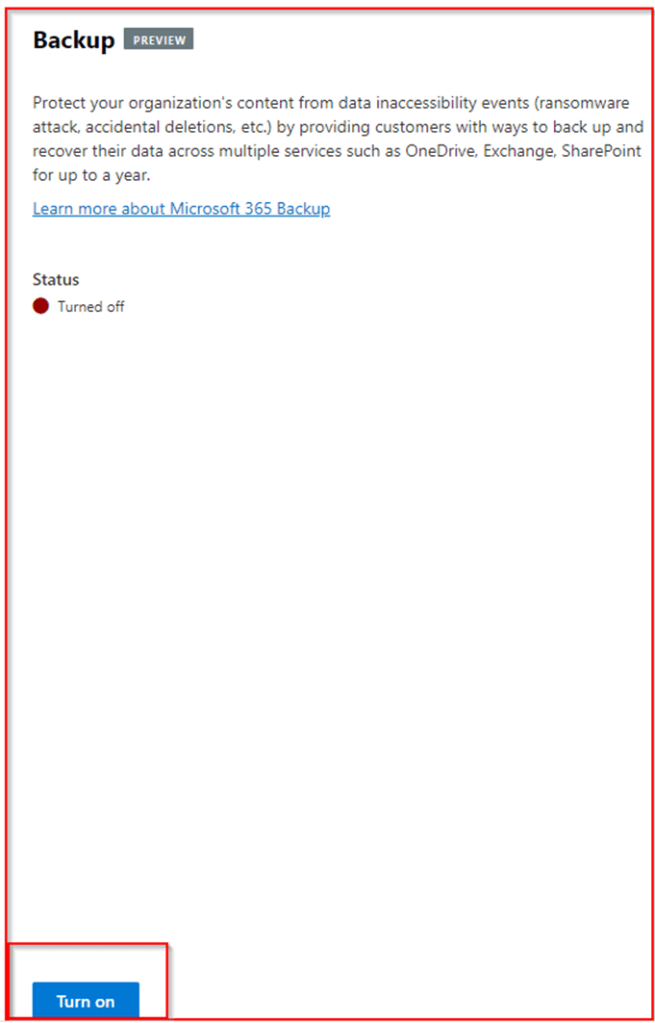
Backup

We are not ready to set up some backup policies and do some testing.

Select the service you would like to backup. In my case it will be OneDrive, but its the same process for all of them.

The backup and retention policy is shown below. The maximum current retention is one year.
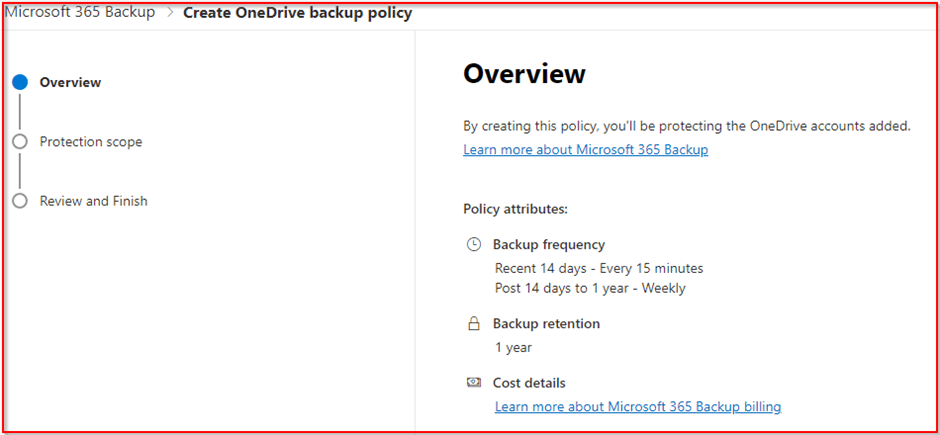
Add the scope of the backup. You have a few different options, in this case i will be adding a single user.

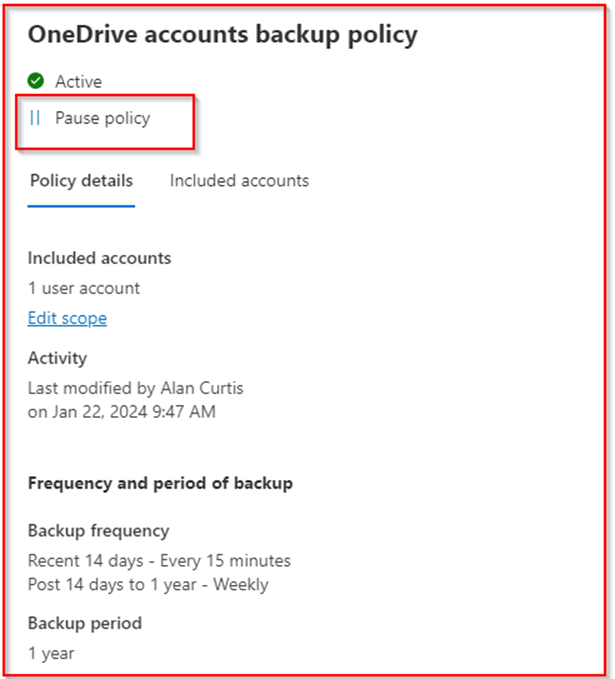
Once you have confirmed the policy, you will get a confirmation screen, you will also notice a status of processing, while everything has been setup and configured. Backups will now be taking place every 15 mins.

Microsoft have included a nice little option to pause a backup policy if required. You can also edit the scope of policy, by adding or removing users.
Restoring a Backup

Restoring from backup is pretty straightforward, select the service you would like to restore and click restore.

Select the account you would like to restore:

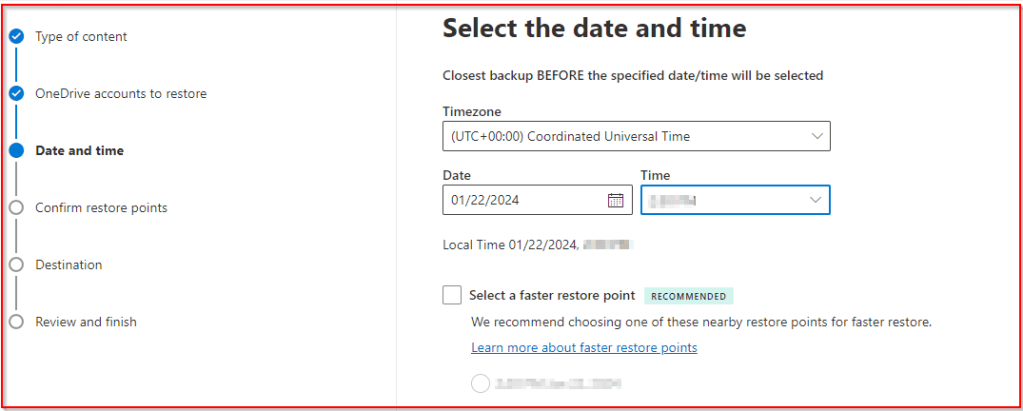
Select the date and time to restore from. Depending on the data and time of your restore Microsoft may suggest a specific retore point for faster restores.
https://learn.microsoft.com/en-us/microsoft-365/syntex/backup/backup-restore-data?tabs=onedrive

After confirming the restore point, you can select to restore the data to the original OneDrive account, or to create a new SharePoint site to restore the data. Restoring to OneDrive will replace all the data in the account. Therefore if you select this option it should only be done when a user is not storing new data to the account. Ideally this would be done out of hours.

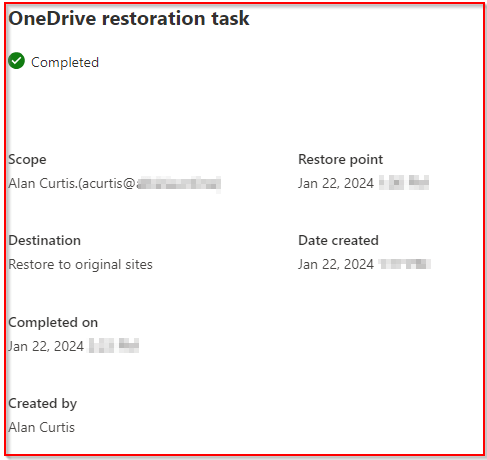
You can view the restored data from the restoration task page.

Once complete you will receive confirmation.
Restoring Emails

When restoring emails, you do have the option to do a restore in place, or to restore to a new folder in the mailbox.

Conclusion

If you’re looking for a straightforward native M365 backup solution without unnecessary complexities, your search ends here. While I anticipate a few adjustments before general availability (GA) release and anticipate further enhancements in the coming months, Microsoft has done a pretty good job..

https://learn.microsoft.com/en-us/microsoft-365/syntex/backup/backup-overview

https://learn.microsoft.com/en-us/microsoft-365/syntex/backup/backup-pricing

https://learn.microsoft.com/en-us/microsoft-365/syntex/backup/backup-faq

Azure Stack HCI Deployment

Since Microsoft announced the release of Azure Stack HCI in 2020 I’ve been eager to get hold of a couple of nodes.

Now you may be wondering. hasn’t Azure Stack HCI been around since 2019? Well yes, sort of. In 2019 Azure stack HCI was still running Windows Server 2019 at its core. The latest 2020 release includes a new OS which can be found here.

So, what is Azure Stack HCI? Its a hyperconverged offering from Microsoft and its OEM partners, which allows you to run your servers in your own datacentres, but also extend your datacentre into Azure with features such as:

  • Azure Backup
  • Azure Policy
  • Azure Site Recovery
  • Azure Monitor
  • Azure Security Centre
  • Azure Automation
  • Azure Support
  • Azure Network Adapter

For companies who are thinking of moving into Azure but are still a little nervous and still want to use their current management tools such as Windows Admin Centre then this is a great first step.

Switchless Storage

One of the things I like about the Azure Stack HCI deployment is the various configuration options. For larger organizations you can have management over 1GbE, VM traffic over dedicated 10GbE and storage over its own dedicated 10GbE ports, however for smaller environments, up to 4 nodes in a cluster, it can be configured to utilize the 1GbE ports for management and VM traffic, and storage can still utilize the 10GbE ports by direct connection.

In an ideal world you would want VM traffic over the 10GbE ports especially in larger environments, however in smaller environments you could get away with the 1GbE ports.

As part of a recent 2 node cluster deployment I had 2 x Dell AX640 nodes, with an additional dual port Qlogic FastLinQ 41262 card in each node directly connected to each other for storage traffic. Managment and VM traffic were configured on the 1GbE ports.

One important thing to note, if you are going to be using management and VM traffic over the same NIC’s is to ensure the native trunk port is the management VLAN.

Operating System and Drivers

The nodes should be shipped with the OS and drivers pre installed, however if they aren’t, or you need to reinstall the OS, you can download the OS here. You will also have to download the drivers from the hardware manufacturer, make sure you download the drivers for Azure Stack HCI OS, as these may be different than the Windows Server 2019 drivers.

I wont go through the OS or driver installation as these are pretty standard for any server, for the Dell I mounted the OS via the IDRAC, completed the installation, then mounted the driver ISO, and installed it via PowerShell.

Deployment Requirements

For the deployment there are a few things worth noting.

  • Management IP’s for the nodes.
  • DNS IP addresses
  • Windows Admin Center installed on a server
  • Azure subscription to register the Azure HCI Stack
  • Cluster witness for 2 node cluster, we will use an Azure storage account for the cluster witness.

Deployment Guide

For the actual deployment I followed Microsoft deployment guide which can be found here. There are a couple of things worth pointing out.

If you are utilizing the direct connect method as above, when you get to the virtual switch creation in section 7 of the guide, select one virtual switch for compute and storage.

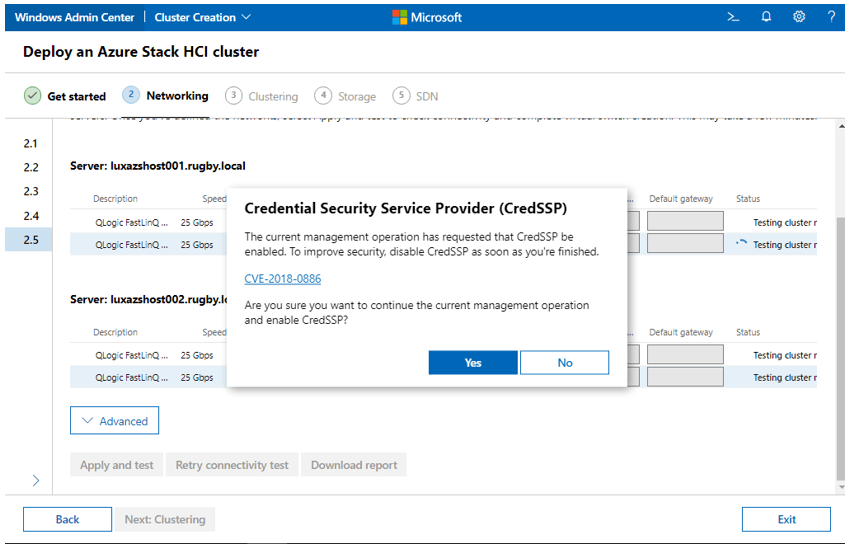
When defining the network in section 2.5, you should receive a request to enable Credential Security Service Provider (CredSSP), if you select no, or don’t receive the request then this section will fail.

CredSSP troubleshooting steps can be found here.

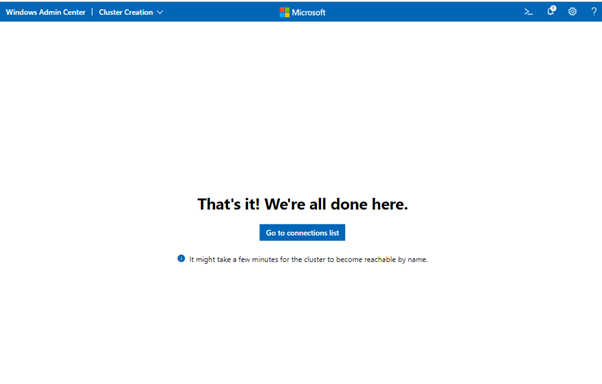
The SDN section optional depending on your requirement, once the initial setup is compete you should get the following confirmation.

Connecting Azure Stack HCI to Azure

In order to register the cluster with Azure, you will first need to register Windows Admin Center with Azure. Once complete you can register the cluster:

Open Windows Admin Center and select Settings from the very bottom of the Tools menu at the left. Then select Azure Stack HCI registration from the bottom of the Settings menu. If your cluster has not yet been registered with Azure, then Registration status will say Not registered. Click the Register button to proceed. You can also select Register this cluster from the Windows Admin Center dashboard.

Additional information on registering the cluster with Azure can be found here.

Additional Information

In order to run Azure stack HCI there are a few bits of information which are worth knowing.

  • Unlike in Azure you will need to provide all OS licenses for your workloads.
  • Each server in the cluster is required to connect back to Azure endpoints at least one every 30 days.
  • In order to utilize the Azure features, Microsoft do charge you £8/physical core per month (UK Regions), additional information can be found here
  • The current version of Azure Stack HCI is 20H2. Public preview of 21H2 is available.
  • Azure Arc integration is currently only available on version 21H2
  • Azure Stack HCI documentation can be found here

Overall Impressions

As mentioned previously I do like Azure Stack HCI, how easy it is to setup and integrate with Azure. If you are looking to build an hybrid cloud environment then its certainly worth a shout.