Azure Cost Analysis

Cloud costs are remain one of the highest concerns for companies year after year, as the recent Flexera state of the cloud report has shown. The Azure Cost Analysis tool, a component of the Azure Cost Management + Billing service, plays a crucial role in empowering users to effectively manage their Azure spending. Accessible through the Azure portal as a dedicated pane, this tool provides comprehensive insights into Azure costs, aiding users in understanding and optimizing their cloud expenditures.

In this blog, we’ll delve into three essential cost views offered by the Azure Cost Analysis tool, each offering unique perspectives to enhance users’ understanding of their Azure costs.
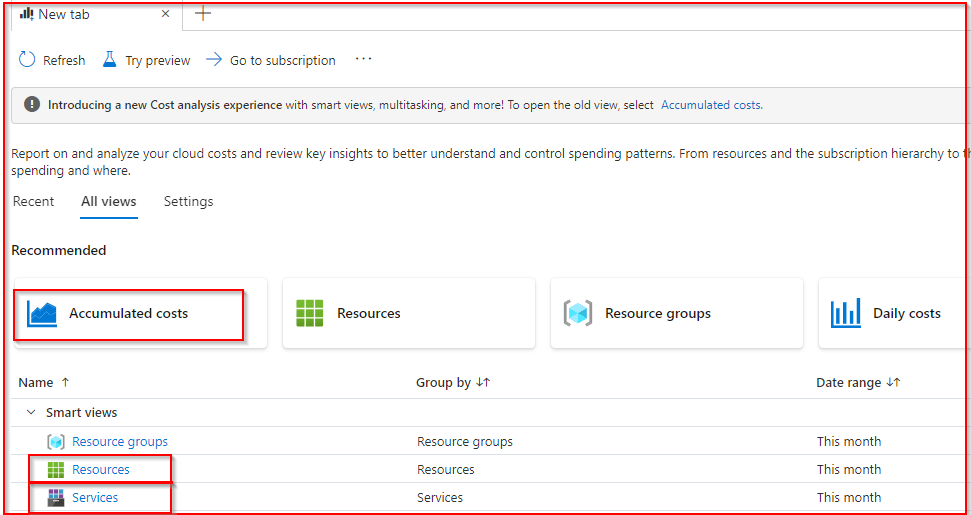
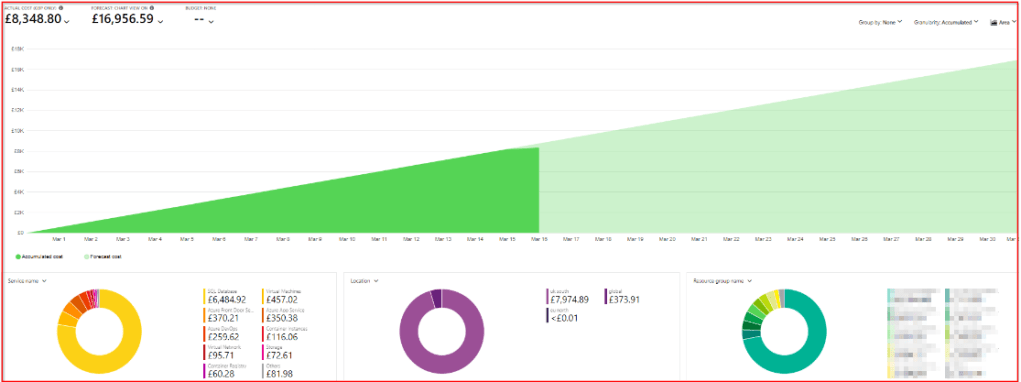
Accumulated Costs: This view offers an insightful overview of both current and forecasted costs for the month. It provides a high-level summary encompassing crucial details such as service names, resource locations, costs, and resource group names. By presenting this information in a consolidated manner, users gain a holistic understanding of their Azure spending trends and forecasts.
Services: Within this section, users gain access to a breakdown of costs categorized by services. Similar services, such as virtual machines, are aggregated, offering users a consolidated view of costs associated with each service category. This high-level perspective enables users to identify which Azure services are contributing the most to their overall costs, facilitating informed decision-making regarding cost optimization strategies.

Resources: The resource-centric view delves into granular details by breaking down costs on a per-resource basis. This feature proves invaluable for users seeking to pinpoint specific resources that are driving the highest costs within their Azure environment. By identifying these top-costing items, users can prioritize optimization efforts and take targeted actions to manage their Azure spending more effectively.

Summary

The Azure Cost Analysis tool equips users with the insights needed to navigate and optimize their Azure spending efficiently. By leveraging the accumulated costs, services breakdown, and resource-centric views, users can gain deeper insights into their Azure costs, identify cost drivers, and implement strategies to optimize their cloud expenditures effectively. Recognizing and understanding costs serve as the initial phase in cost management and reduction efforts, making the utilization of the cost analysis tool a valuable first step on this journey.

Azure Advisor

Although Azure Advisor has been around for quite some time, it remains relatively unknown to many. Let’s take a closer look at this powerful tool.

What is Azure Advisor

Azure Advisor provides you with a one stop high level overview of your Azure environment. It provides actionable recommendations across critical dimensions, helping you optimize your resources.

Areas Covered:

  • Cost
    • Advisor analyzes your resource usage and suggests ways to reduce costs.
    • It identifies underutilized resources, recommends rightsizing, and highlights opportunities for reserved instances.
  • Security
    • Advisor focuses on security hardening.
    • It detects vulnerabilities and recommends actions related to network security groups, identity management, and data encryption.
  • Reliability
    • Ensuring high availability and fault tolerance is crucial.
    • Advisor suggests strategies to improve redundancy, load balancing, and disaster recovery.
  • Operational Excellence
    • Advisor ensures efficient resource management.
    • It provides best practices for tagging, automation, and monitoring.
  • Performance
    • It recommends ways to tune configurations, optimize queries, and scale resources.

Scoring and Recommendations

  • Microsoft gives each section a score.
  • Score and the recommendations are separate. You might have a perfect score in one section but still get some suggestions.
  • For example, recommendations under “Reliability” take into account things like security, saving money, and operational excellence.

When you click on the recommendations, you’ll be presented with the following:

  • Impact
    • This section outlines the severity or impact of the recommendation.
    • It helps you understand how critical the suggested action is for your environment.
    • Impact levels typically include:
    • High: Urgent actions needed to prevent major issues.
    • Medium: Important improvements that enhance efficiency.
    • Low: Minor adjustments with potential benefits.
  • Description
    • Here, you’ll find a detailed explanation of the recommendation.
    • Understand why the specific action is recommended and how it affects your resources.
    • The description often includes technical insights and best practices.
  • Potential Benefits
    • This section highlights the advantages of implementing the recommendation.
    • It answers the question: “What do I gain by following this advice?”
    • Benefits may include cost savings, improved performance, better security, or streamlined operations.
  • Impacted Resources
    • Advisor specifies the affected Azure resources related to the recommendation.
    • You’ll see a list of resources (e.g., virtual machines, databases, storage accounts) that benefit from the proposed action.
    • Understanding which resources are impacted helps you prioritize and plan your changes.

Summary

Azure Advisor is like a secret weapon—it’s your go-to spot for getting awesome tips and tricks to supercharge your Azure setup. Seriously, every Azure admin should bookmark this gem and keep it handy on their dashboard.

https://learn.microsoft.com/en-us/azure/advisor

https://learn.microsoft.com/en-us/azure/advisor/advisor-overview